Open my studio
All you need is an OmStudio account (see Create my account). On the OmStudio teachers page , click Open my space for free: the Create your studio wizard guides you through four steps.
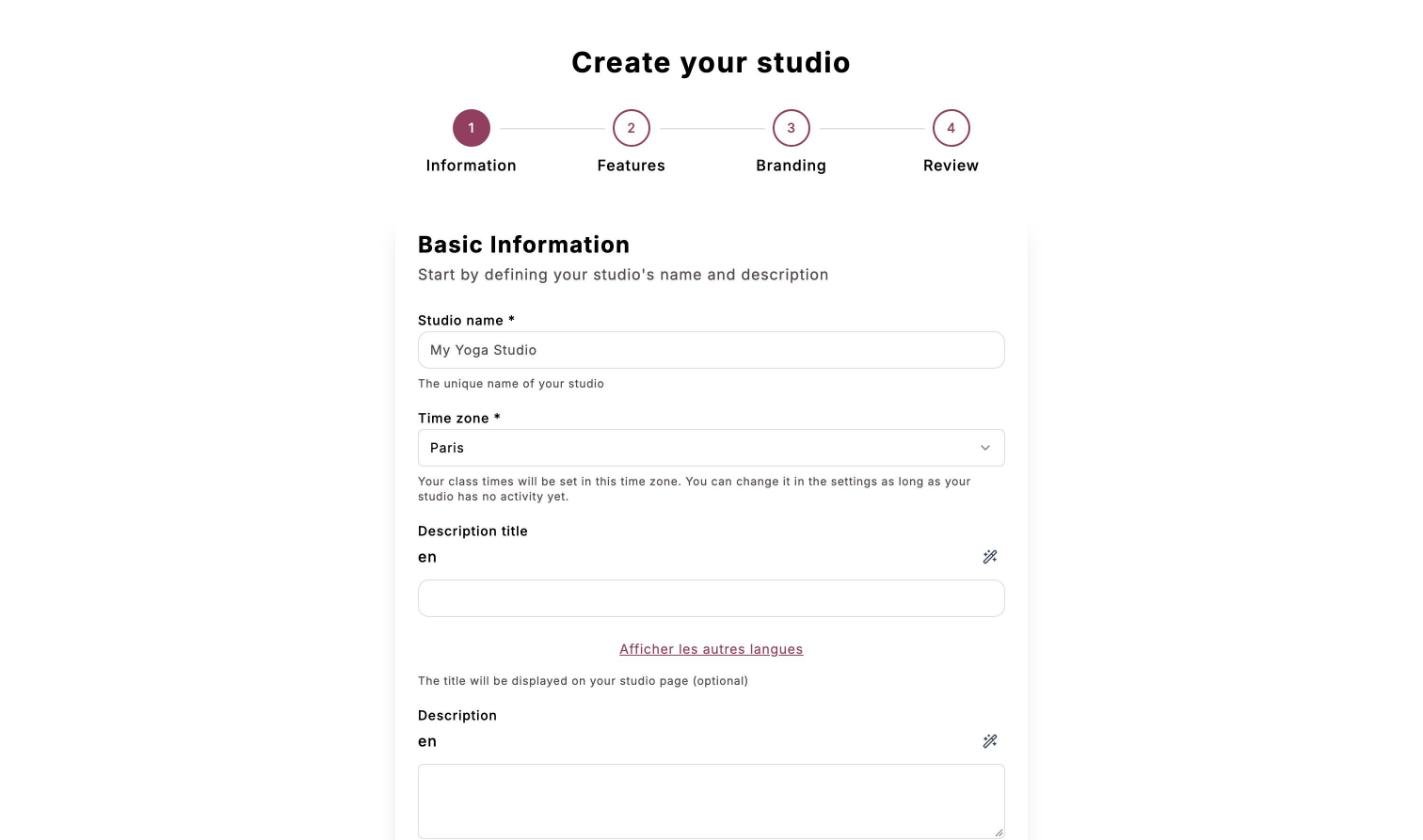
Information
Choose the Studio name (it must be unique: the wizard tells you whether it is available) and your Time zone. Add a title and a description: the magic wand corrects, rewords or translates them, and Afficher les autres langues (Show other languages) lets you enter them in French, German and Spanish.
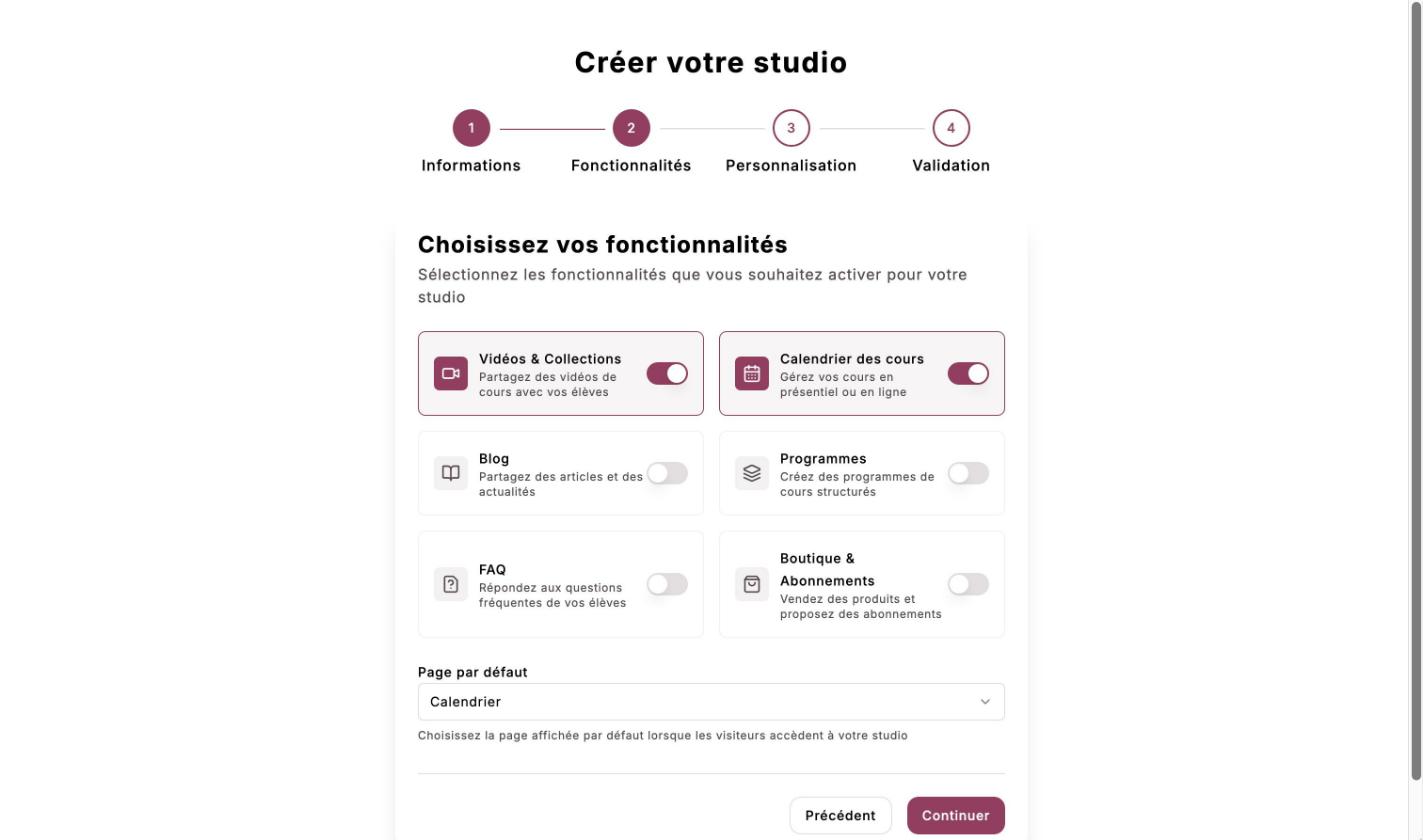
Features
Turn on the sections you need: Videos & Collections, Class Calendar, Blog, Programs, FAQ, Shop & Subscriptions. Also choose the Default page, the one your visitors see first. You can change everything later.
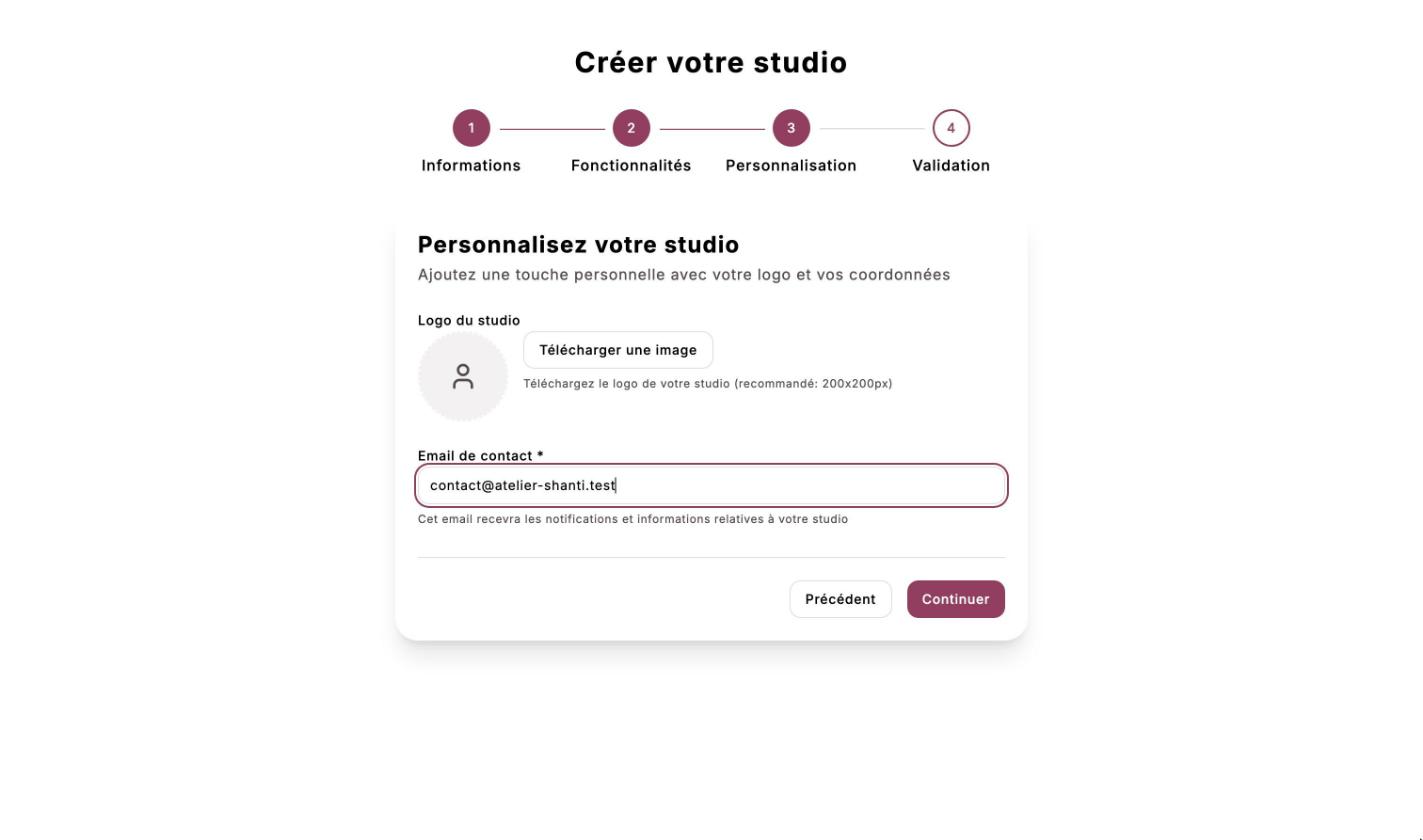
Branding
Add your logo and the studio’s Contact email: it receives the notifications and information about your studio.
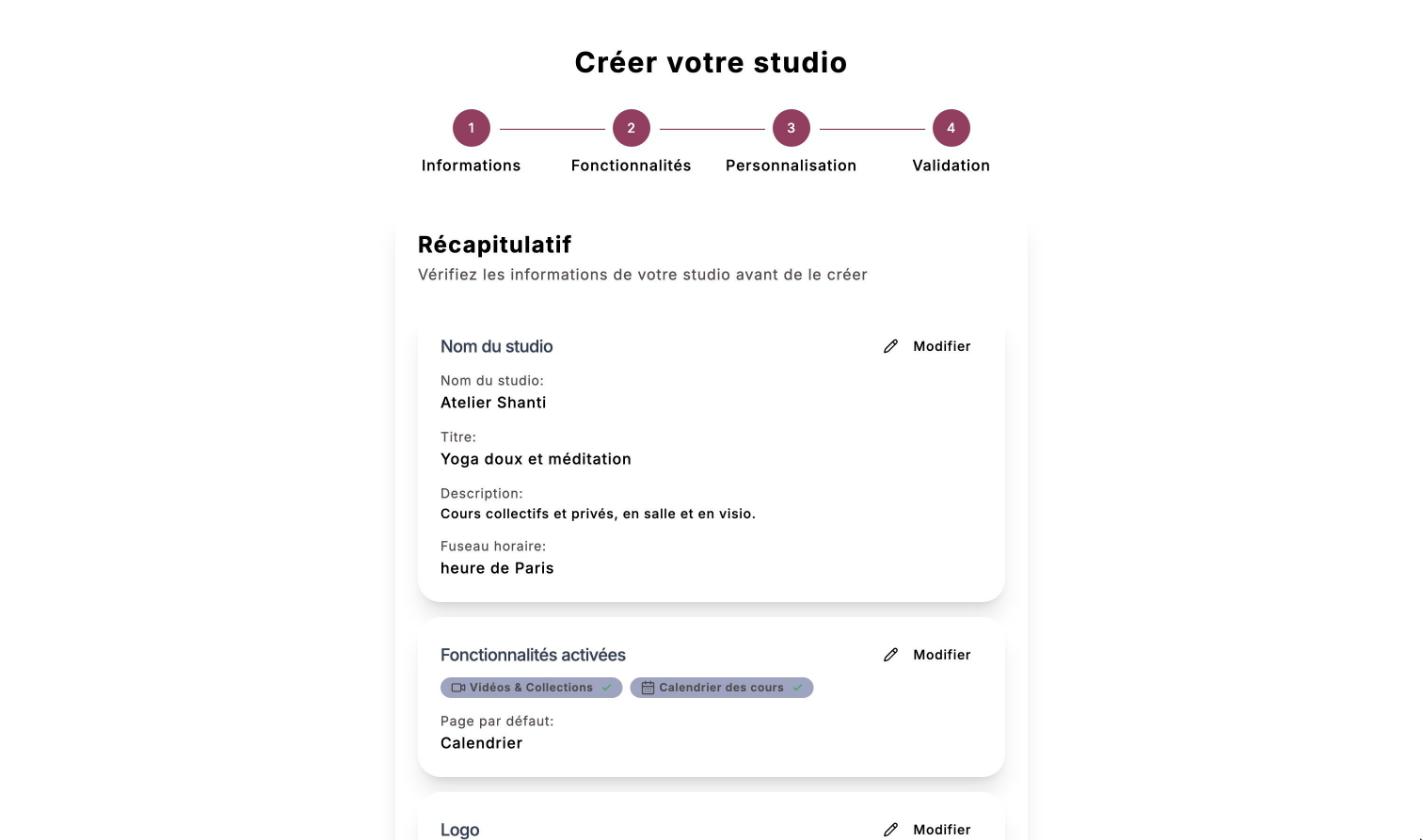
Review
Read through the summary, fix anything with Edit if needed, then click Create my studio.
The time zone sets the time of all your classes. It can no longer be changed in the settings once the studio has any activity (a class, a sale…): choose it carefully.
What next?
Your studio is created and you are its administrator. To be ready for your first clients:
- complete your settings (photo, presentation, links);
- create your pricing and write your terms of sale;
- publish your first classes;
- share your studio with your OneLink page and QR codes.
A new studio is first reachable through its link. To have it appear in OmStudio’s studio search, contact us at omstudio.app.contact@gmail.com.