Create a class
Before creating a paid class, create its price in Pricing (Courses family). A class can also be free.
Open your studio’s calendar
Click My Studio in the menu, then the calendar icon. As a teacher, you see the Create a course button at the top right.
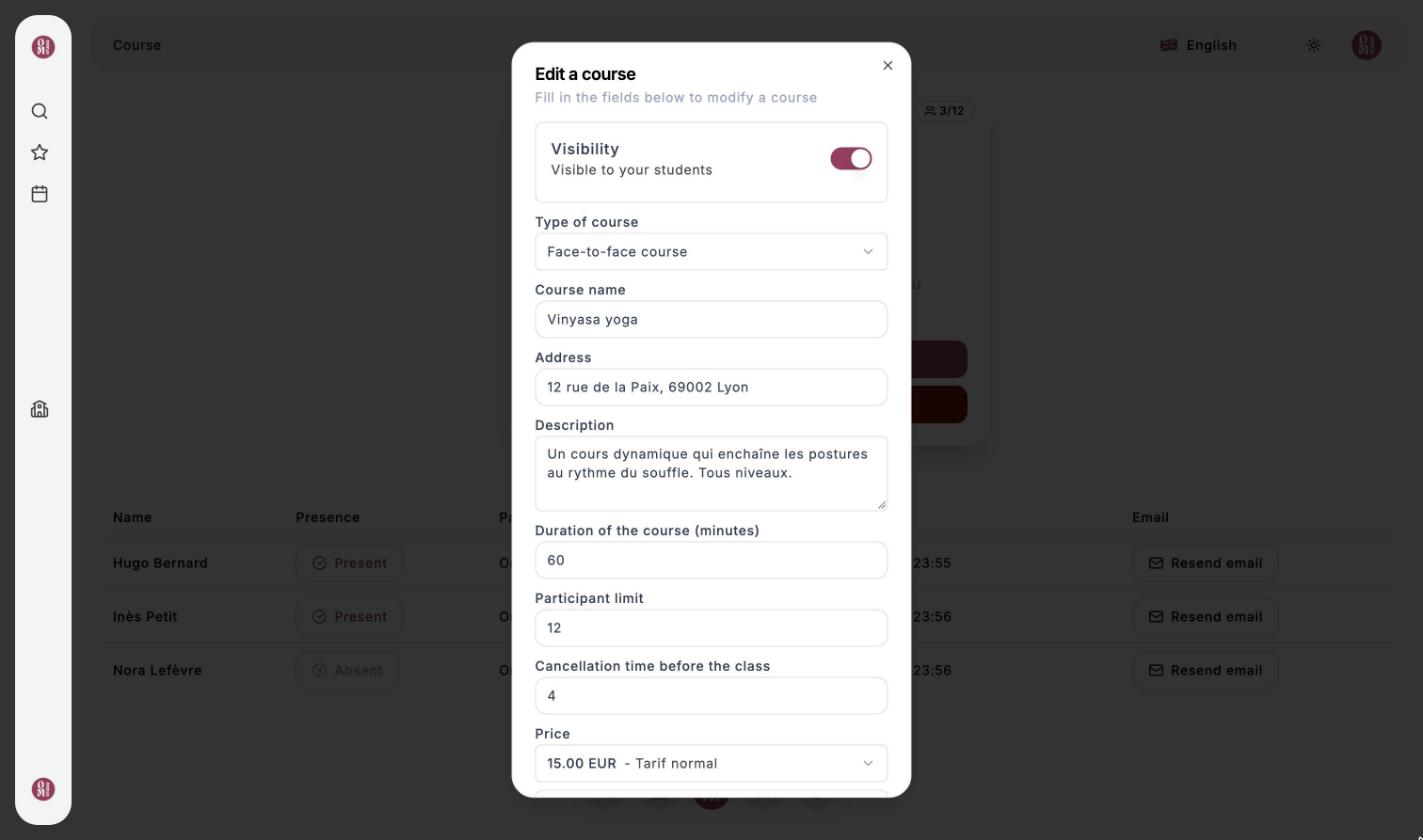
Fill in the form
- Visibility: a hidden class is not visible to your clients (handy for preparing your schedule).
- Type of course: in person or online (live).
- Course name, Address and Description of the class.
- Duration of the course (minutes) and Participant limit.
- Cancellation time before the class: up to how many hours before the start your clients can cancel and get their credits back.
- Price: choose a price from the Courses family, or “Free”.
- Allow Om-Money payment: turn it off for a class that can only be paid by card.
- Date and time, in the studio’s time zone.
- Instructors: the teacher or teachers of the class.
Validate
Click Validate. The class appears in the calendar: your clients can book it right away.
Cancellation deadline example
A class starts at 6:30 pm with a 4-hour deadline: your clients can cancel and get their Om-Money back until 2:30 pm. After that, cancelling is no longer possible from the app.
Video
Last updated on