My clients
Customers menu. The list brings together everyone linked to your studio: people who have booked or bought something, and people you have added. For each of them: username, full name, current membership, last class booked and Om-Money balance.
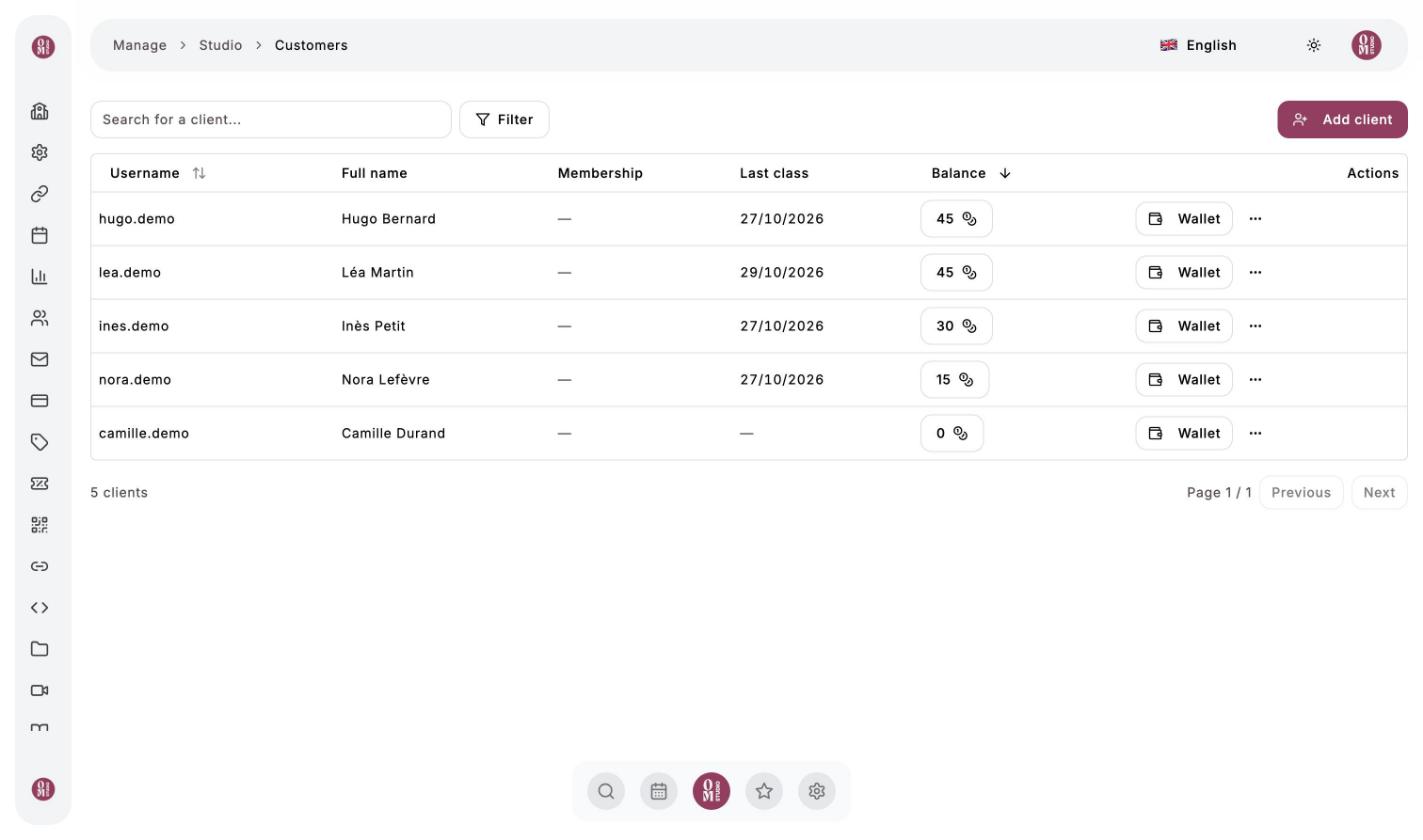
Search and filter
Type a name in Search for a client, or click Filter to combine criteria: balance, upcoming credits, expiring credits, last class booked, newsletter subscription, has already paid at the studio, number of purchases, first purchase, payment date.
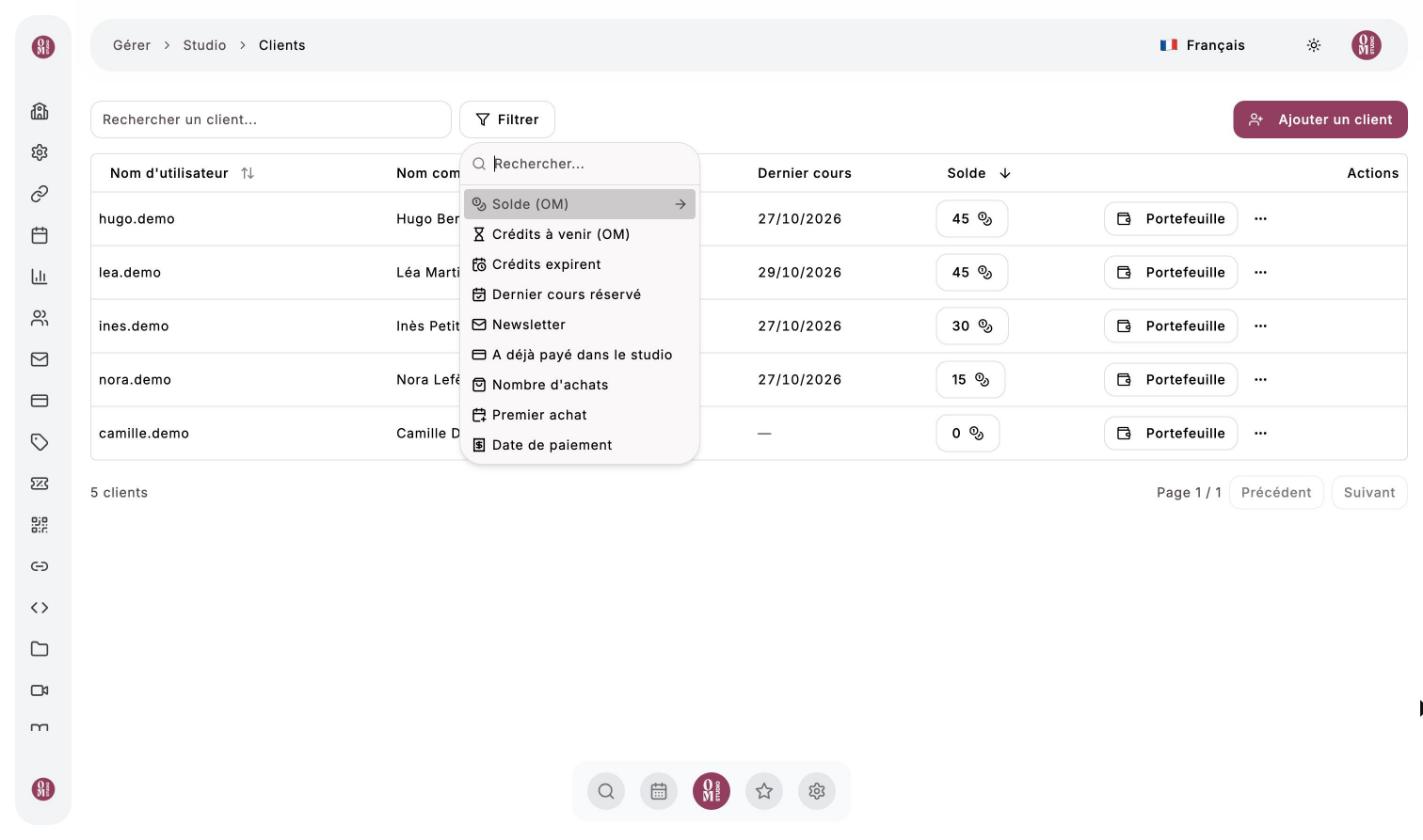
Example: filter “Credits expire” within the next 15 days, then send these clients a short reminder from Emails.
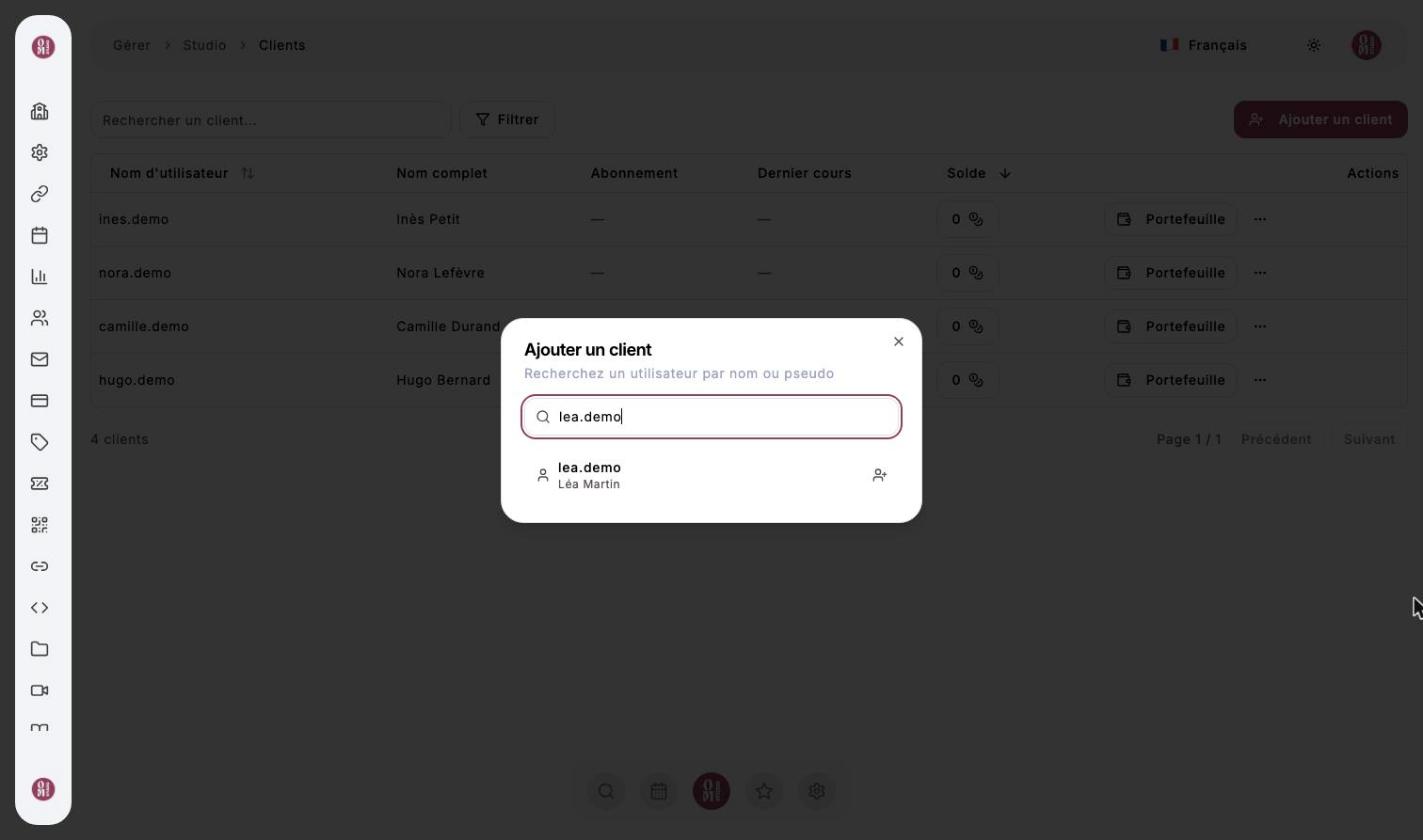
Add a client
Click Add client, search for the person by name or username (they must have an OmStudio account), then click the add icon.
A client’s wallet
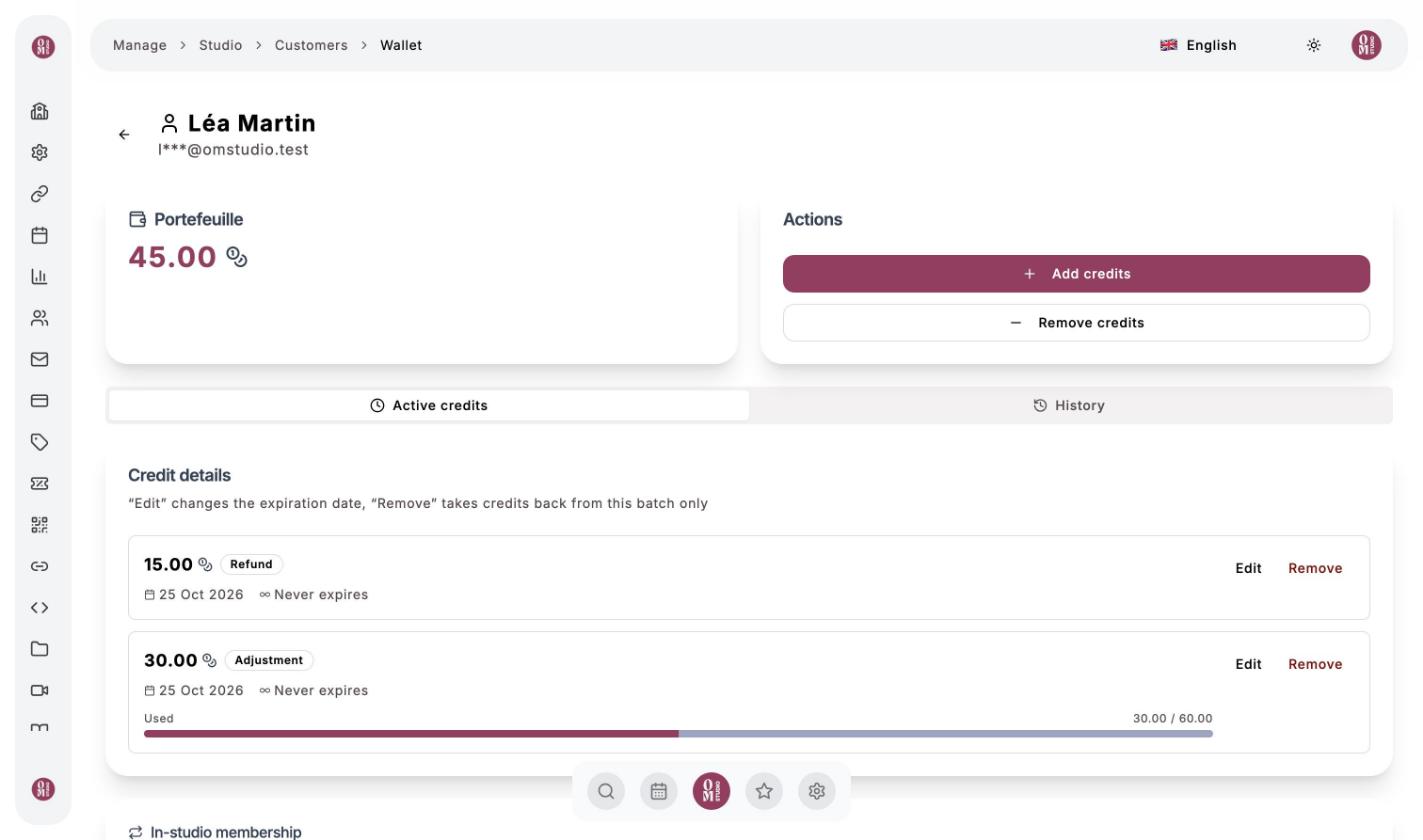
Click Wallet on the client’s row. Their page shows:
- their Om-Money balance and the details of their credits by batch (origin, date, expiry, share used). Edit changes a batch’s expiry date, Remove takes credits back from that batch;
- the history of their transactions;
- their current In-studio membership, if they have one;
- Complimentary access: give them access to a video or a program without a purchase (trial, goodwill gesture, catch-up).
Their email address is masked to protect their privacy.
Credit a client
Click “Add credits”
Enter the amount and a description
For example 60 Om-Money for “4 classes paid in cash”. The description appears in the history.
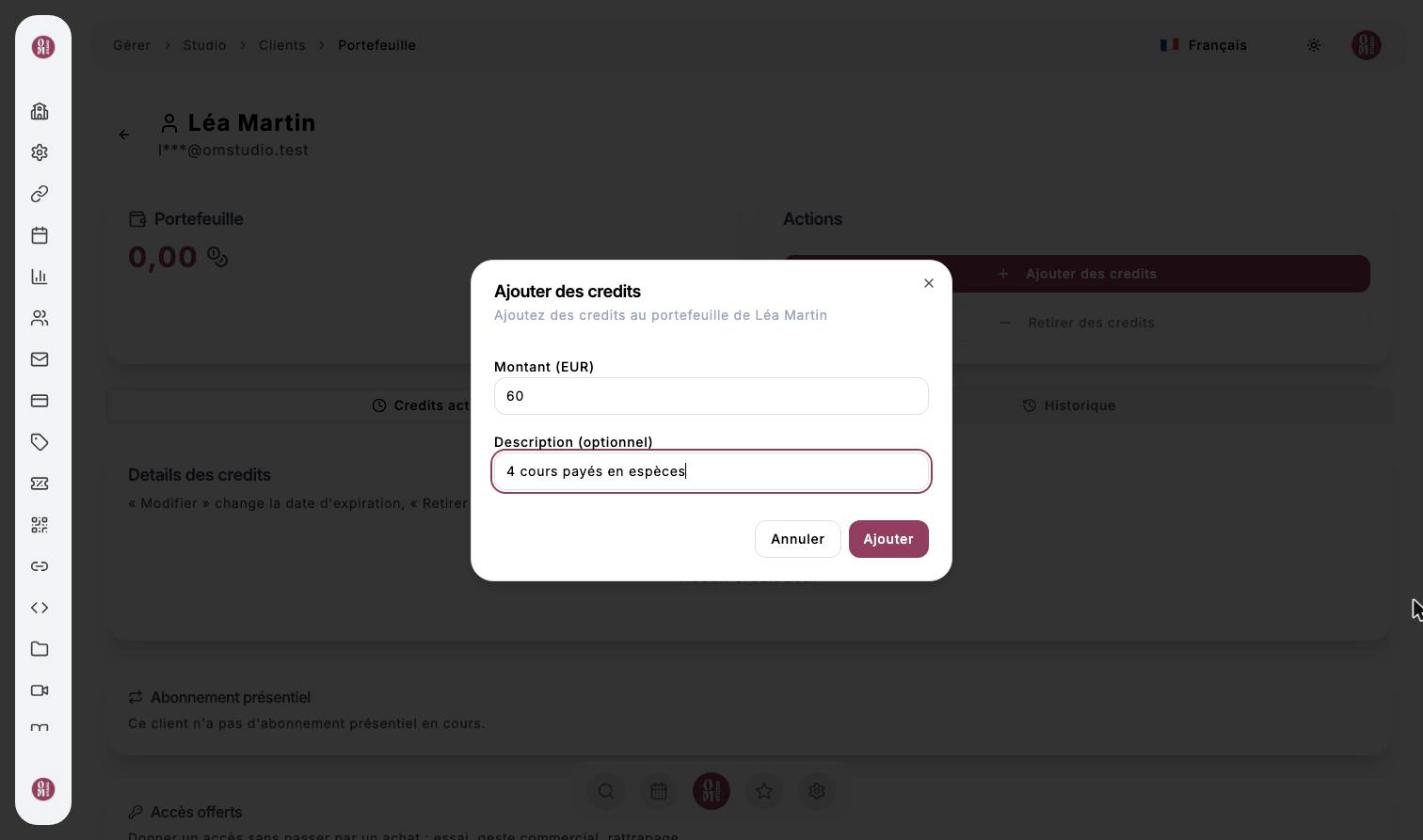
Click “Add”
The client can book with these Om-Money right away.
Common uses: a client who pays you in cash or by bank transfer, a gift, a goodwill gesture after something unexpected.