My team
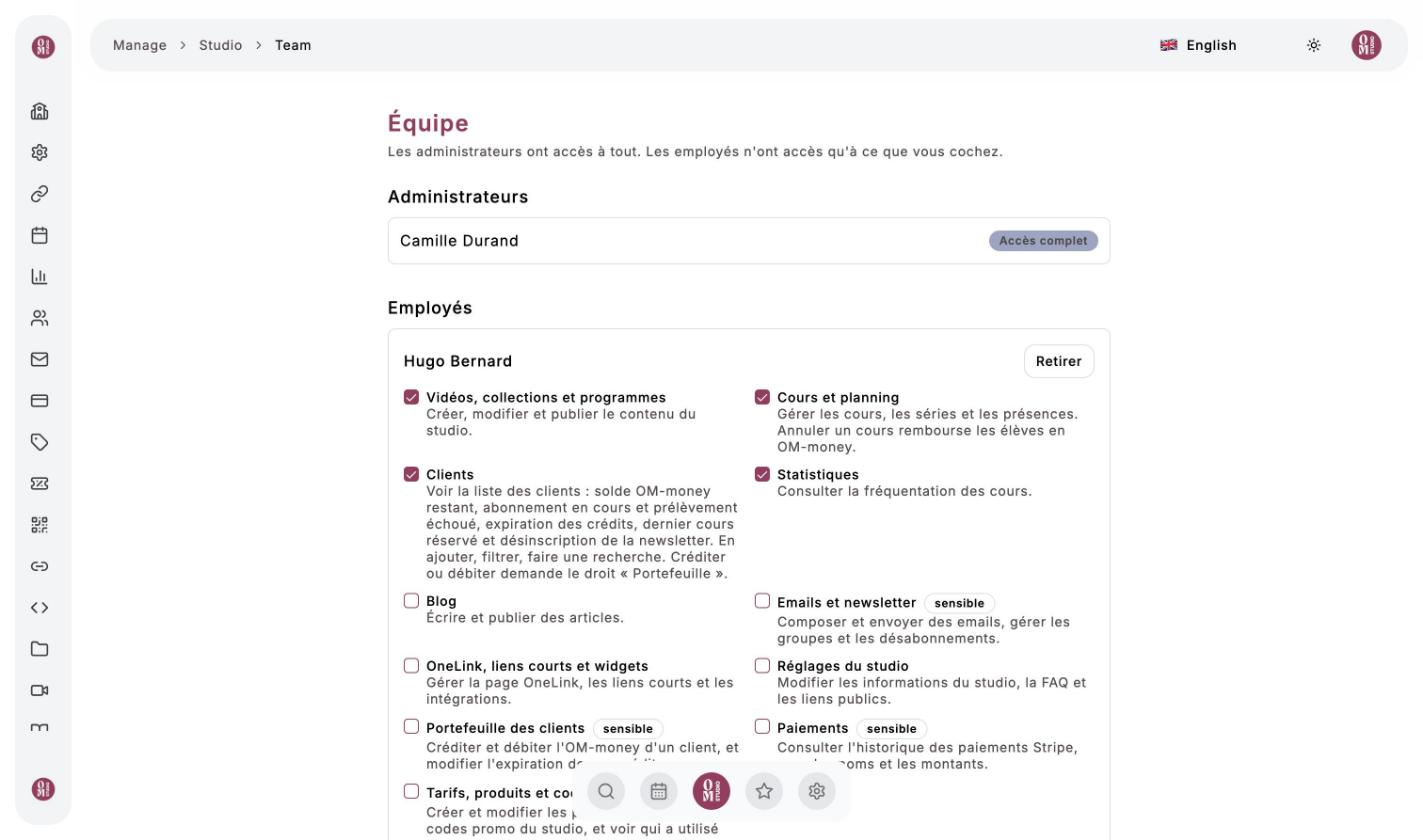
Team menu (administrators only). Work with others on the same studio: each person keeps their own account.
This screen is not translated into English yet; labels are shown as they appear in the app.
- Administrateurs (Administrators) have access to everything.
- Employés (Employees) only have access to what you tick.
Add an employee
In Ajouter un employé (Add an employee), search for a person who is already a client of the studio (last name, first name or username), then click Nommer employé·e (Appoint as employee). Then tick their access:
| Access | What it allows |
|---|---|
| Vidéos, collections et programmes (Videos, collections and programs) | Create, edit and publish the studio’s content |
| Cours et planning (Classes and schedule) | Manage classes, series and attendance |
| Clients | See the client list, add clients, filter |
| Statistiques (Statistics) | View class attendance |
| Blog | Write and publish posts |
| Emails et newsletter (Emails and newsletter) (sensible) | Write and send emails, manage groups and unsubscribes |
| OneLink, liens courts et widgets (OneLink, short links and widgets) | Manage the OneLink page, short links and embeds |
| Réglages du studio (Studio settings) | Edit the studio’s information, the FAQ and the public links |
| Portefeuille des clients (Client wallets) (sensible) | Credit and debit a client’s Om-Money, change the expiry of their credits |
| Paiements (Payments) (sensible) | View the payment history, with names and amounts |
| Tarifs, produits et codes promo (Pricing, products and promo codes) (sensible) | Create and edit products, prices and promo codes |
⚠️
Access marked sensible (sensitive) involves money or your clients’ data: only give it to people you trust. Retirer (Remove) takes away an employee’s access, and they become a regular client again.
Video
Last updated on